How to convert Word reports to PowerPoint presentations for professional summaries?


Revolutionize report presentations! Learn to effortlessly convert Word reports into captivating PowerPoint presentations with MagicSlides.
Turning comprehensive Word reports into impactful PowerPoint presentations has never been more accessible. In this step-by-step guide, we'll explore a simple and efficient method using Google Slides and the MagicSlides extension. Elevate your professional summaries with visually appealing presentations that captivate your audience.
How to convert Word reports to PowerPoint presentations for professional summaries
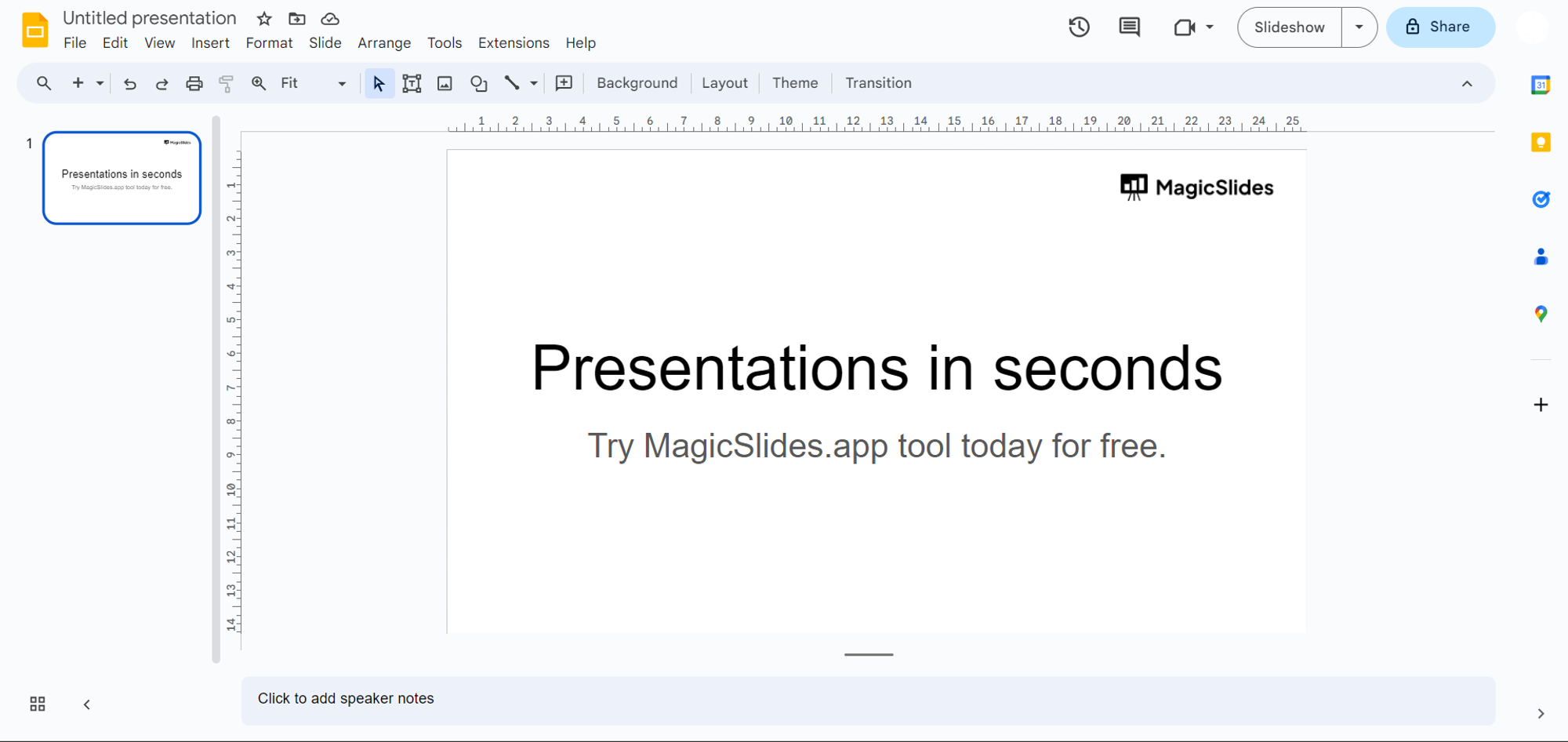
Step 1: Visit Google Slides
Embark on your journey by navigating to slides.google.com and sign in with your Google account. If you don't have an account, it's easy to create one.
Step 2: Download MagicSlides Extension
Ensure a seamless experience by checking if MagicSlides is already downloaded.
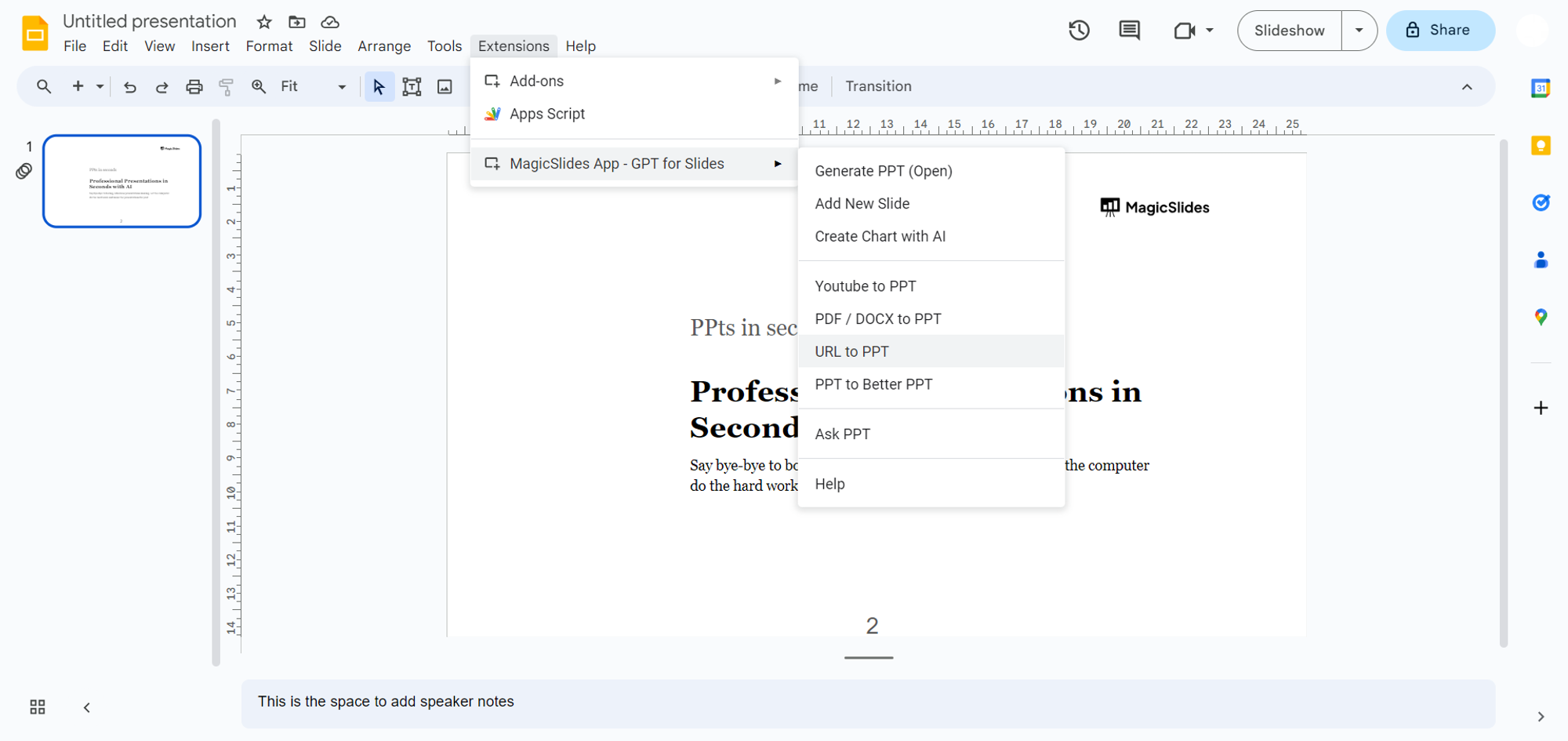
If not, head to the Extensions Marketplace, search for "MagicSlides.app," and download the extension to enhance your Google Slides capabilities.

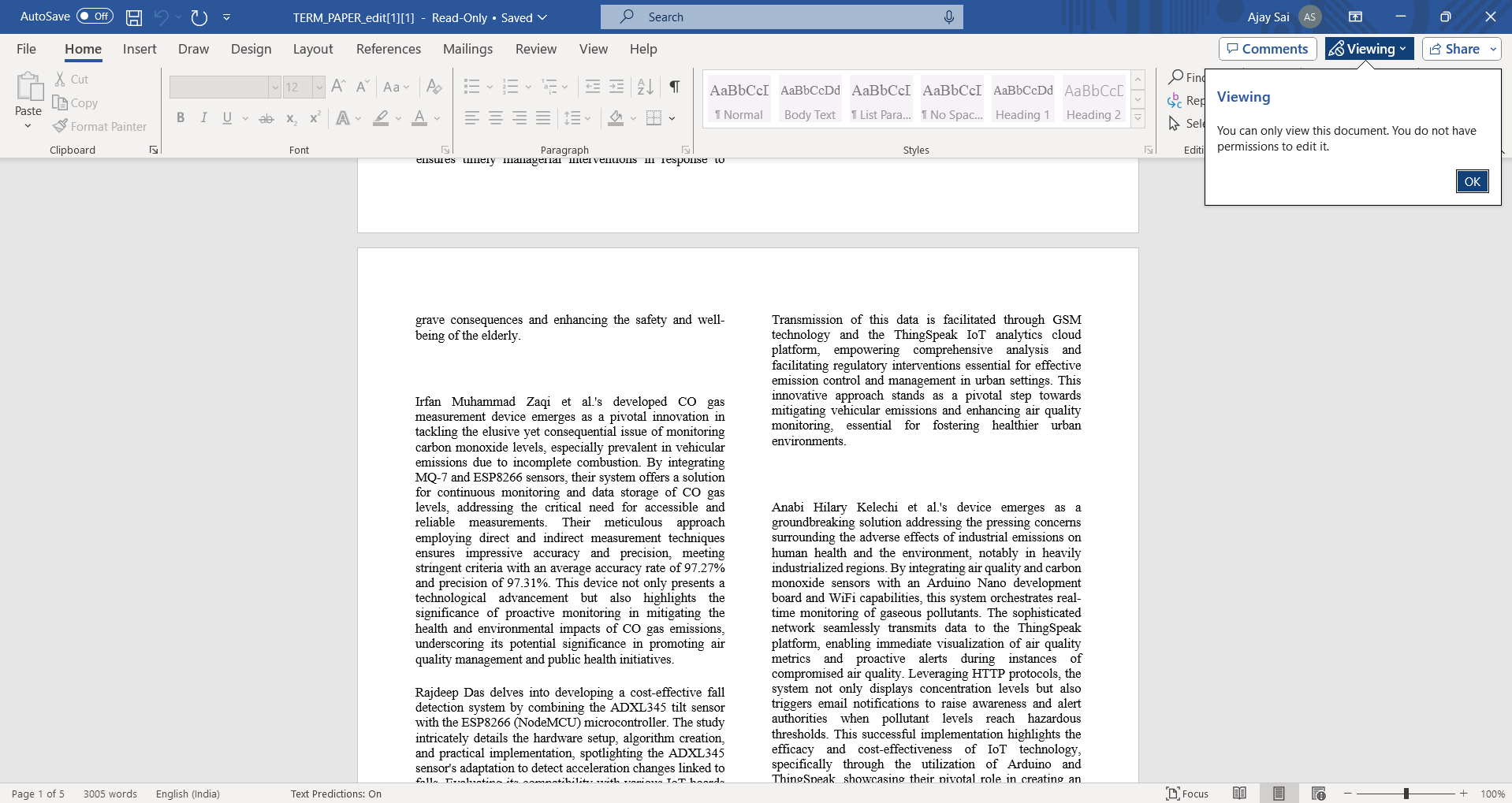
Step 4: Locate Your Word Report
Navigate to your local system and locate the Word report you wish to convert. This could be a business report, project summary, or any document you want to present professionally.
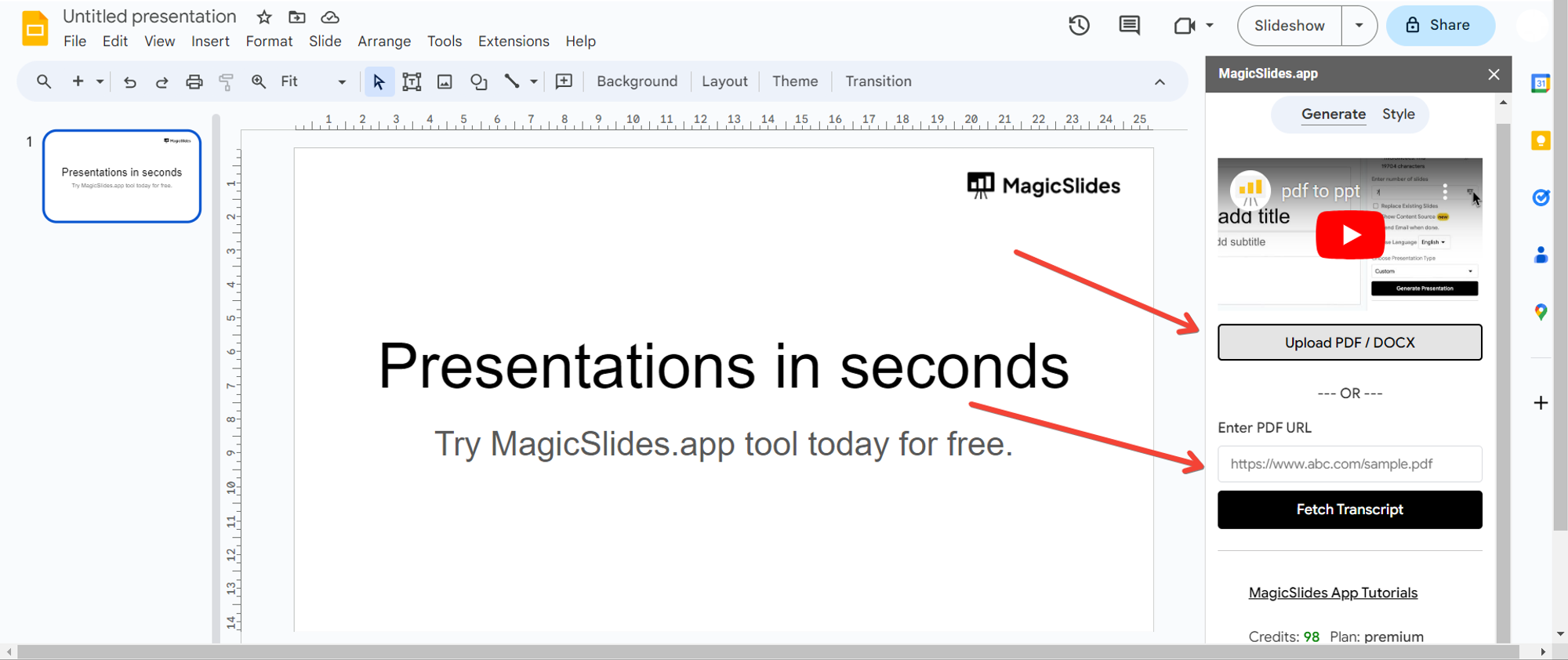
Step 5: Upload the Word Report
With your Word report ready, return to Google Slides and open MagicSlides. Upload your Word report file, signaling the beginning of the conversion process.
Step 6: Click "Generate Presentation"
After uploading your Word report, click on the "Generate Presentation" button. Let MagicSlides work its magic, seamlessly transforming your detailed report into a visually engaging PowerPoint presentation.

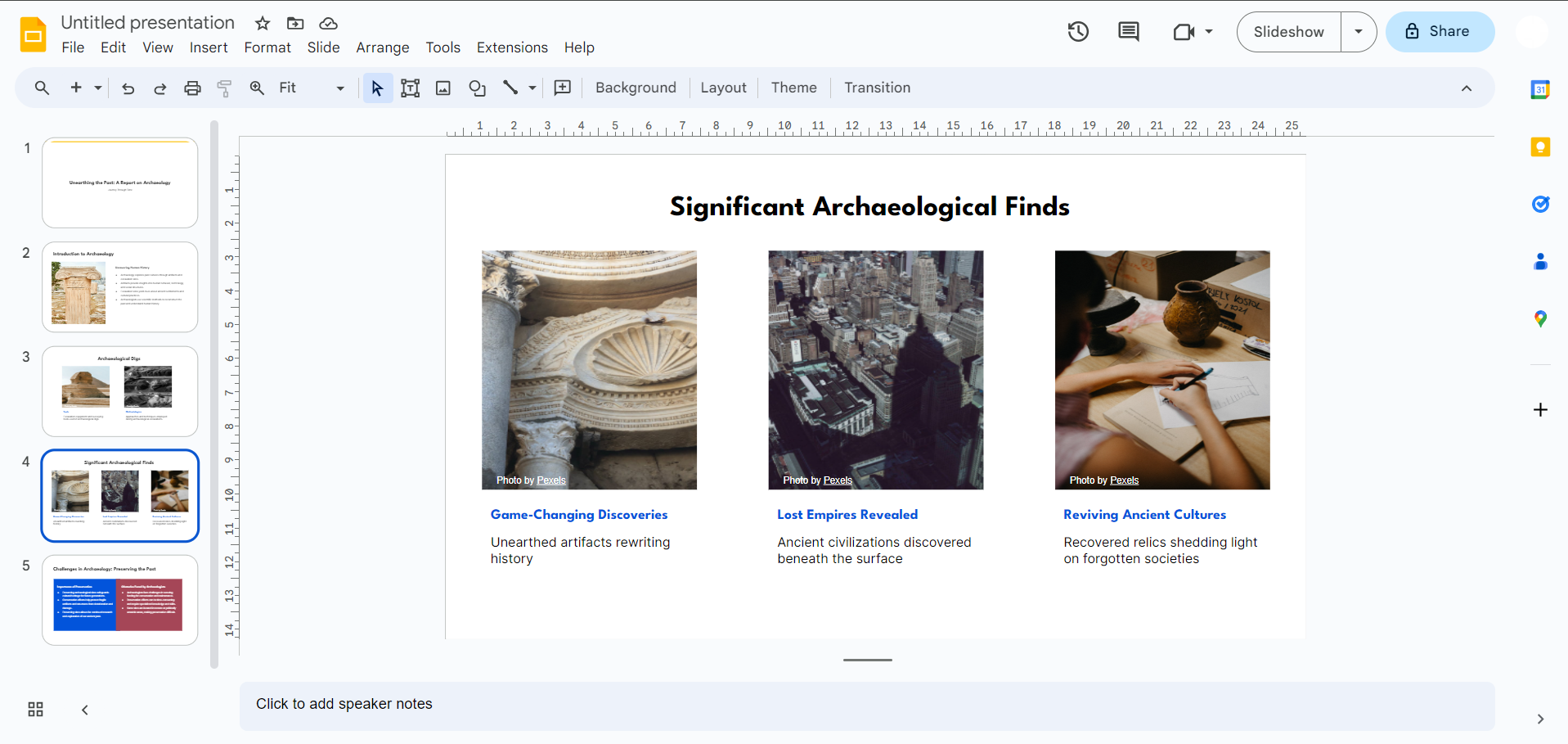
Step 7: Your Word Report is Now a PowerPoint Presentation
Congratulations! Your Word report has undergone a remarkable transformation, emerging as a polished and professional PowerPoint presentation ready for sharing and presenting.
Conclusion:
In just a few straightforward steps, you've learned how to effortlessly convert Word reports into impactful PowerPoint presentations. The combination of Google Slides and MagicSlides not only streamlines the conversion process but also enhances your ability to deliver concise and visually appealing professional summaries. Embrace this efficient method and let your reports shine in the world of presentations!
Frequently Asked Questions:
Can I use MagicSlides for any type of Word report, regardless of its complexity?
Yes, MagicSlides is designed to handle various types of Word reports, ensuring versatility in conversion.
Is MagicSlides compatible with all versions of Google Slides?
Yes, MagicSlides seamlessly integrates with Google Slides, ensuring compatibility with the latest versions.
Can I make edits to the presentation after using MagicSlides?
Absolutely! Once the Word report is converted, you have full control to edit and customize the presentation in Google Slides.
Is there a limit to the file size of the Word report I want to convert?
While MagicSlides can handle various file sizes, for optimal performance, it's recommended to convert reasonably sized reports.


